 PurEditor
.
PurEditor brings rich text, plain text and Markdown together in one text editor. Write documents, take notes, edit code and review logs without constantly switching between apps.
Why PurEditor
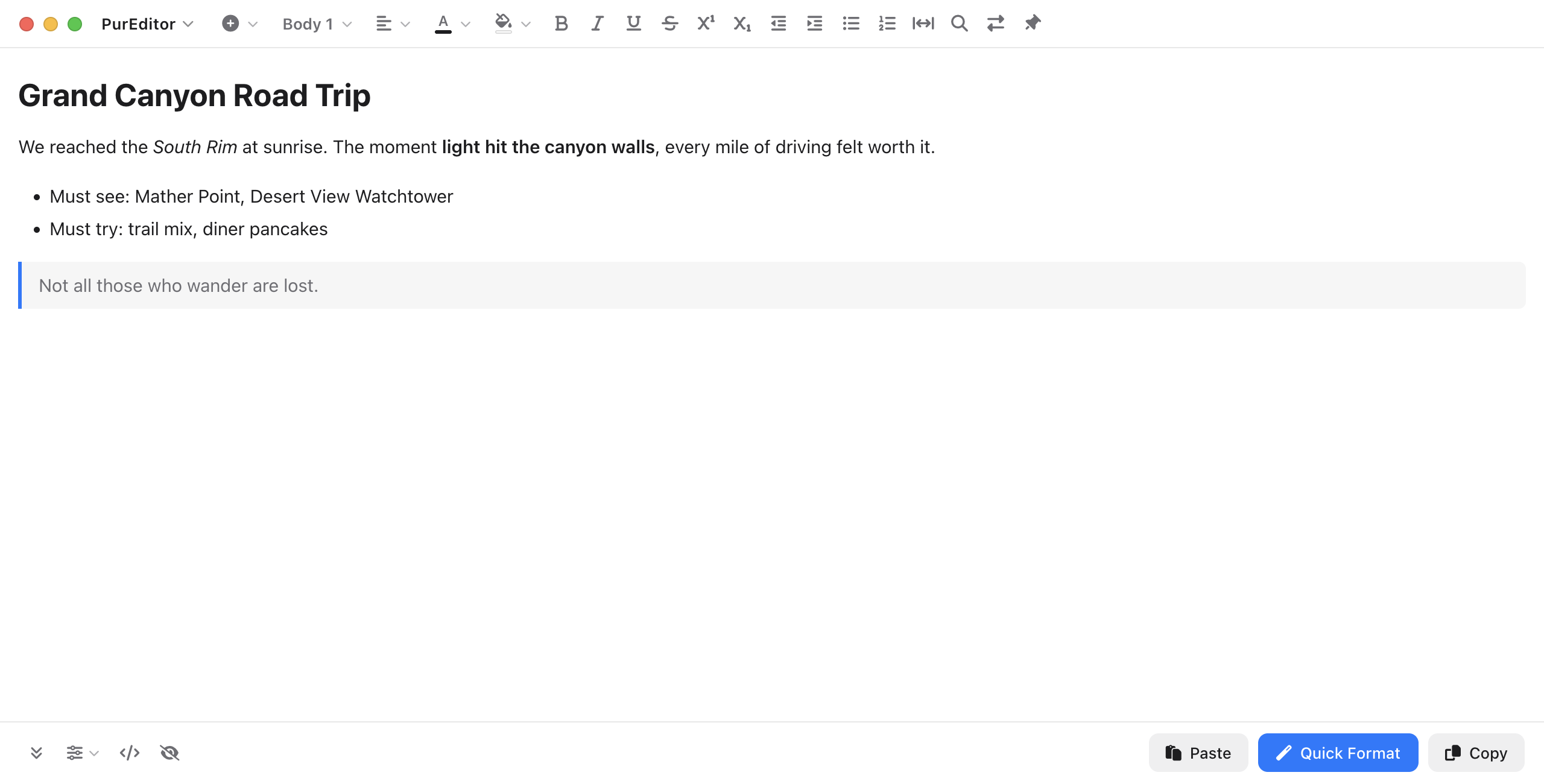
One-Click Formatting
Word-style visual editing with headings, tables and images. Format your content with one click and save directly as DOCX or HTML.
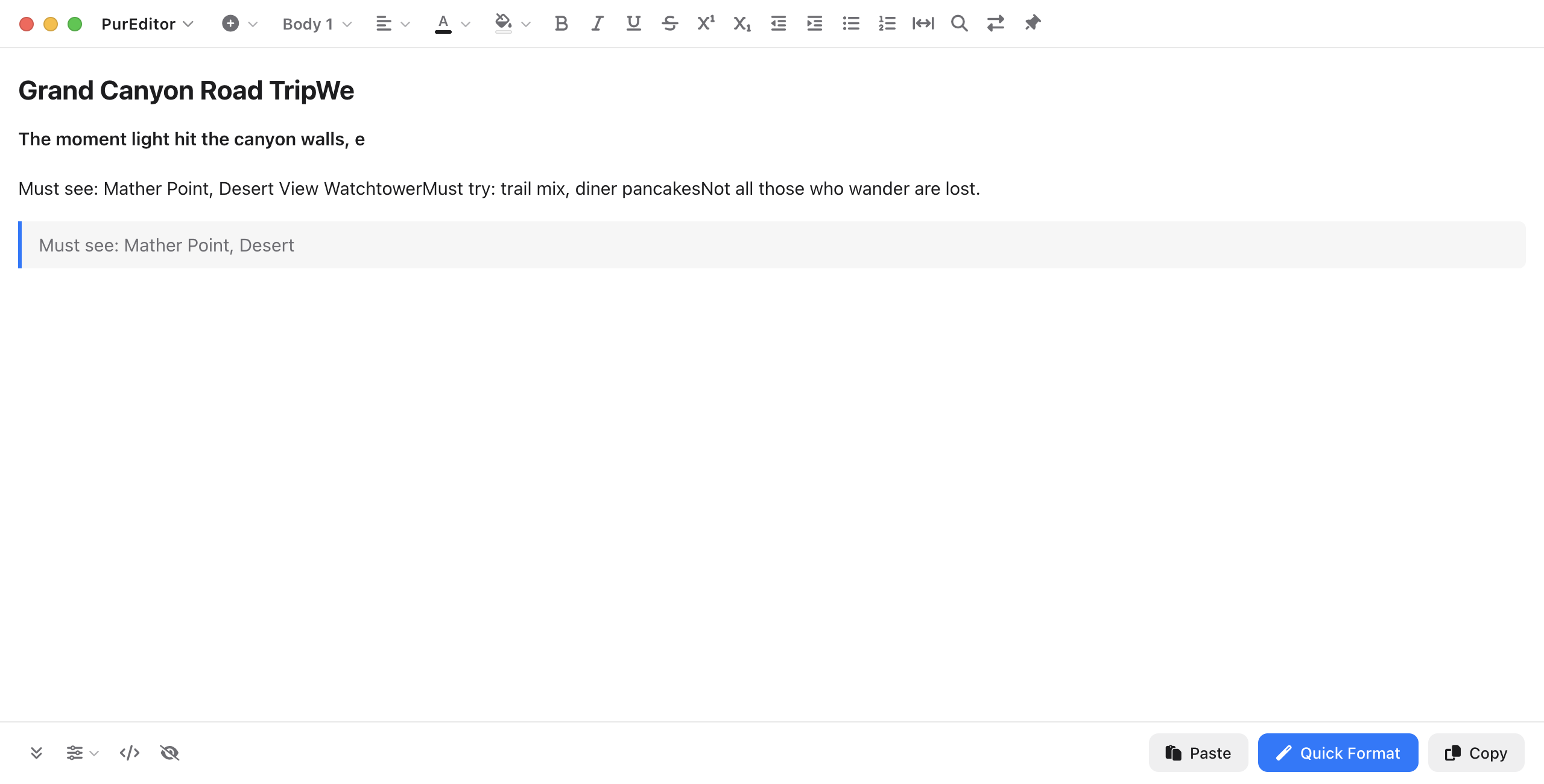
Auto-Replace
Set up replacement rules in groups. When you paste text, PurEditor automatically applies the matching rules. Use regular expressions and wildcards to tidy documents and clean data.
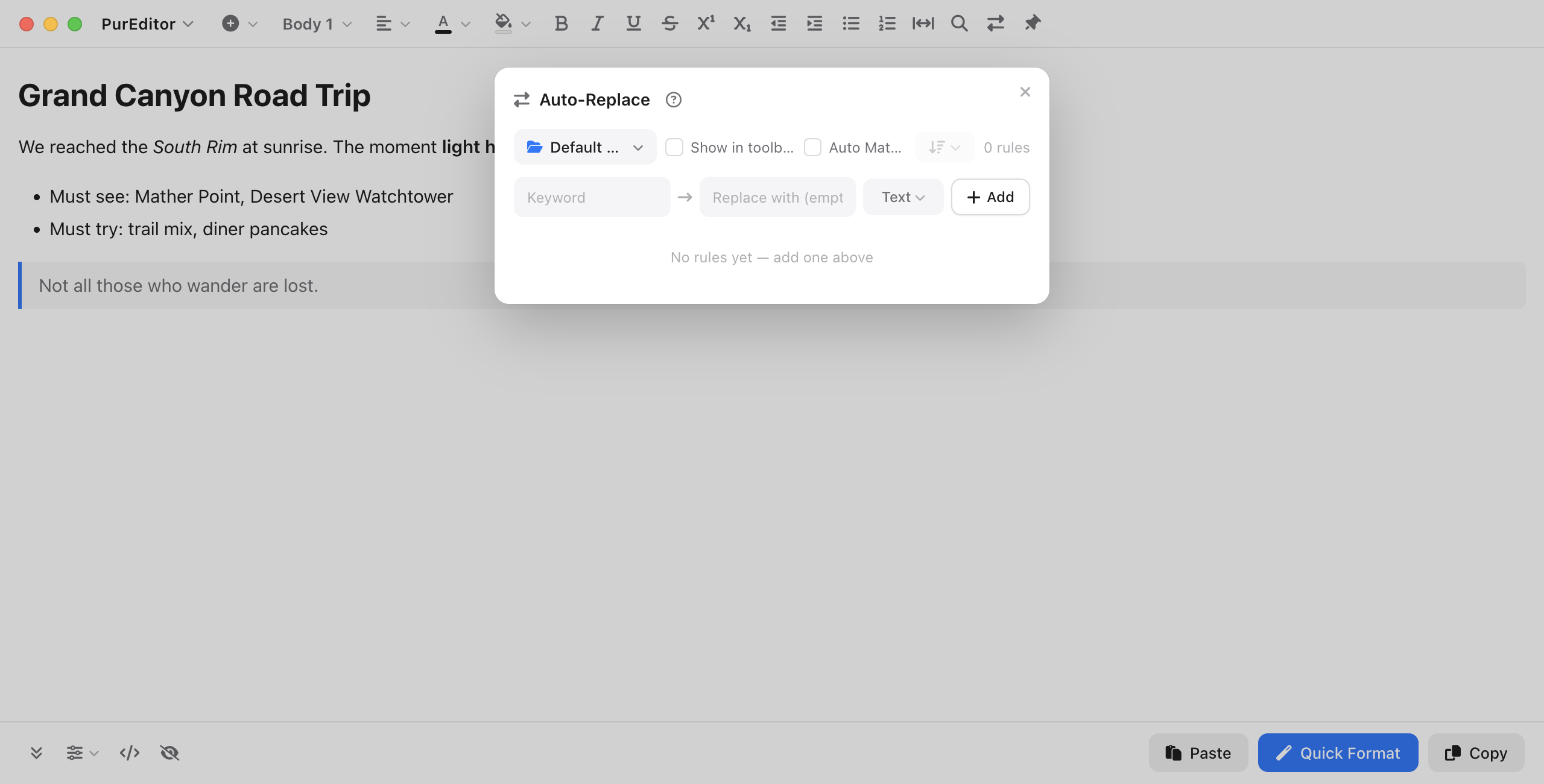
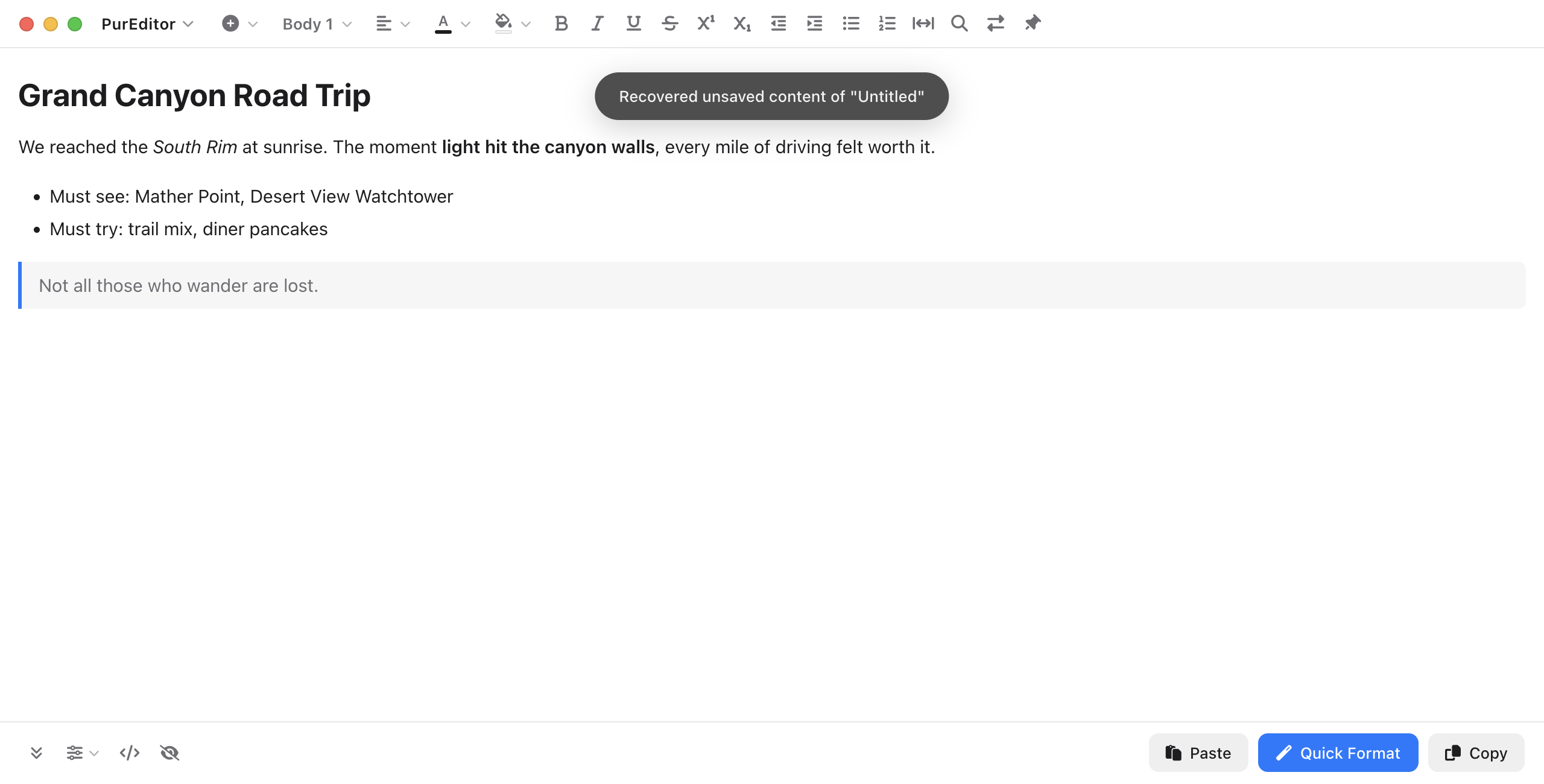
Automatic Draft Saving
PurEditor saves your draft as you write. If the app crashes or you force it to quit, reopen it to continue from your last saved draft.
Three modes for different kinds of work
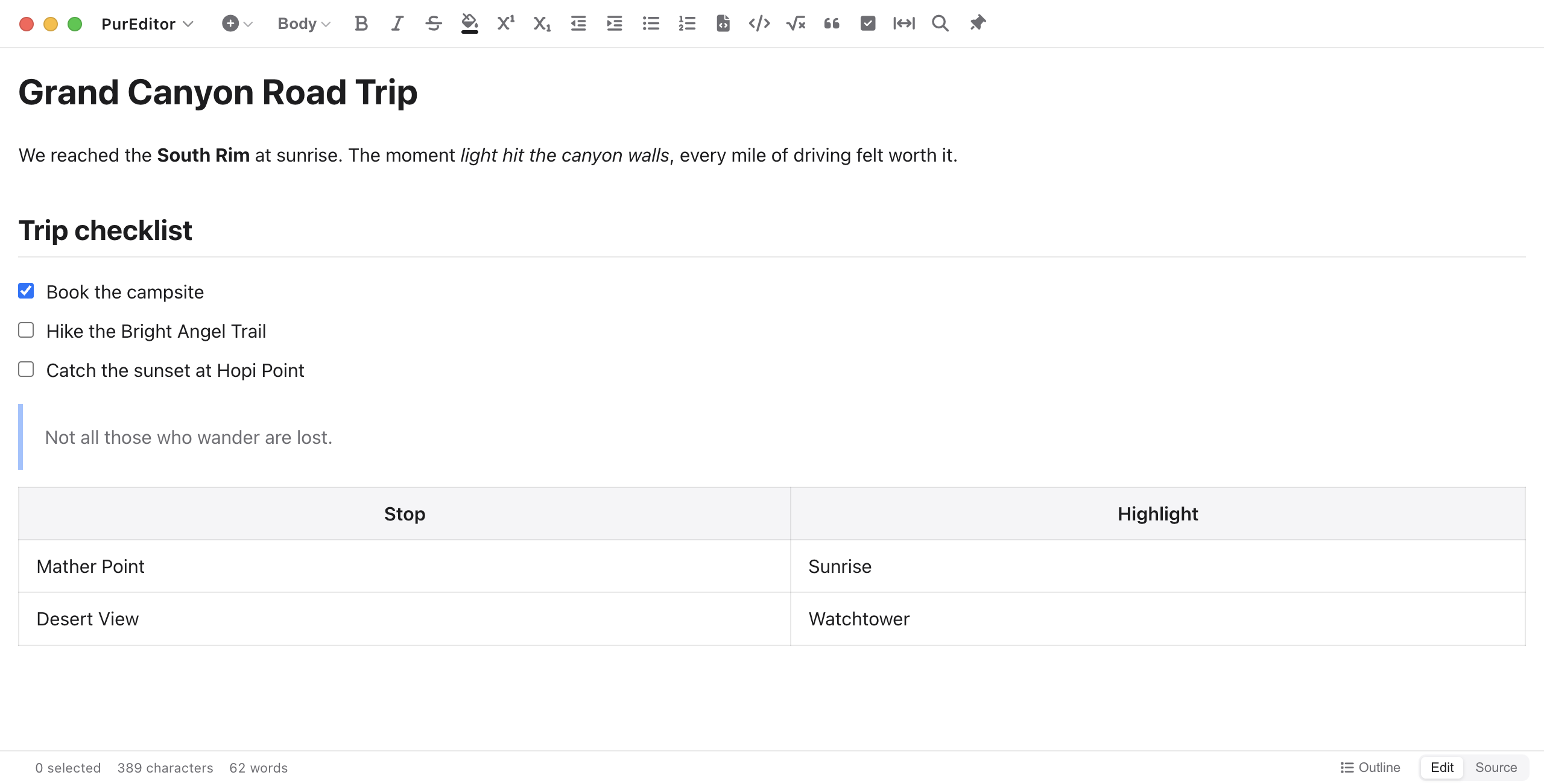
Rich Text
- Word-style visual editing with one-click formatting
- Easily insert tables, images and block quotes.
- Save directly as DOCX or HTML
Markdown
- Live preview as you write
- Syntax highlighting and outline navigation
- Ideal for writing technical documentation and blog posts.
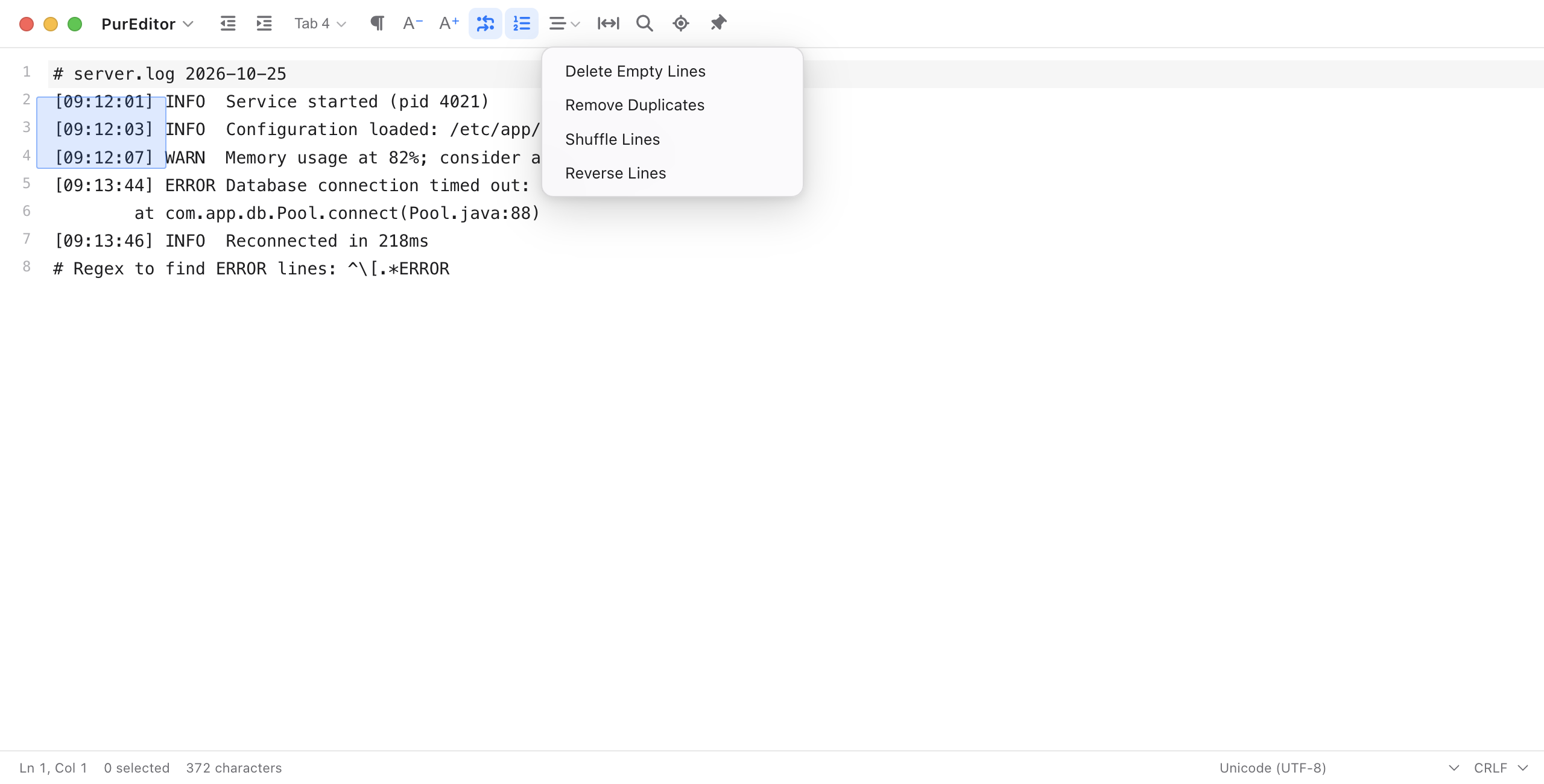
Plain Text
- Line numbers, regex find & replace, column selection
- Support for UTF-8, GBK, Shift-JIS and other text encodings
- Opens source code, logs and config files
And more
Download PurEditor
How to make PurEditor your default editor (macOS)
Right-click any .txt file and choose “Get Info”
Expand “Open with” and choose PurEditor
Click the “Change All…” button below
Confirm the change in the dialog to finish.